Part ofClaude AI Features: Everything It Can Do (2026)
In This Article
8 sectionsQuick answer
Claude computer use lets Claude see your screen and control the mouse and keyboard to operate software. How it works, where to use it, and its safety limits.
Claude computer use is a capability that lets Claude see your screen through screenshots and control the mouse and keyboard to operate software the way a person does. It runs on a perception-action loop: capture the screen, read it with vision, click or type, then repeat. Anthropic offers it through the API and inside Cowork on Pro and Max plans.
Model and plan availability verified 31 July 2026 against Anthropic's computer use tool documentation.
We have watched Claude open an app we never touched, click through a form, and screenshot the result while we sat back. It feels like screen-sharing with a colleague who moves the cursor. Below we explain what computer use actually is, the loop that powers it, where you can run it, the real jobs it handles, and the safety limits that matter before you hand over control. We verified this flow hands-on, so where a step is fiddly we have flagged it from experience instead of guesswork.
Key takeaway
Claude computer use lets Claude see your screen through screenshots and control the mouse and keyboard on a perception-action loop — capture, read, click or type, repeat — available through the Claude API and inside Cowork on Pro ($20/month) and Max plans, with per-app permission and no sandbox between Claude and your live desktop.
What is Claude computer use?
It is the capability that lets Claude operate a machine through its graphical interface instead of an API — reading a screenshot, working out where the cursor must go, and issuing the click or keystroke itself. Any visual software qualifies.
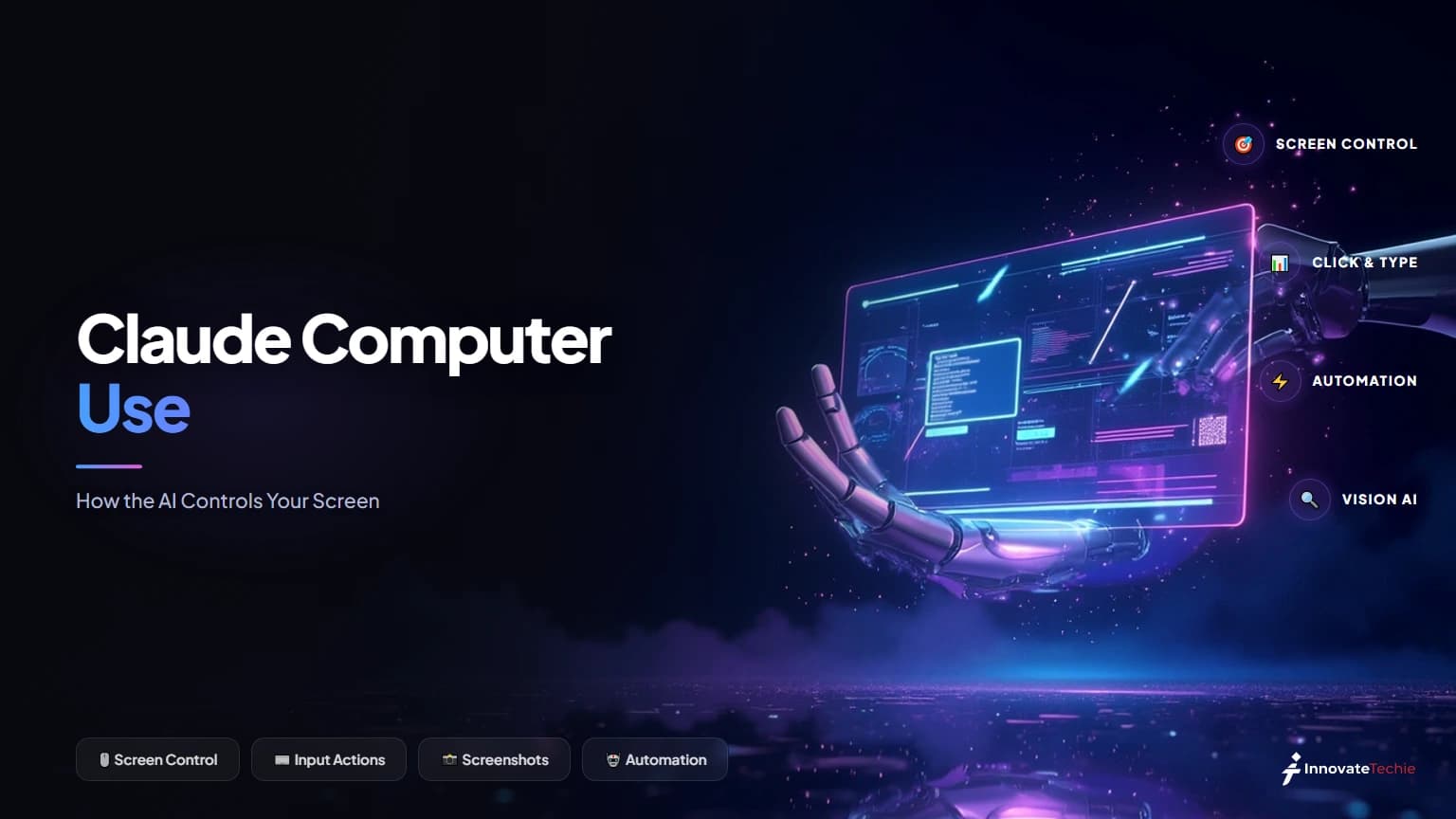
Claude computer use is the capability that lets Claude operate a computer through its graphical interface rather than only through text or an API. Instead of asking you to click buttons, Claude looks at a screenshot of your screen, works out where to move the cursor, and issues the click, keystroke, or scroll itself. Anthropic first shipped this ability with an upgraded Claude 3.5 Sonnet and has since built it into its consumer apps.
The plain-English version of what is Claude computer use: it is Claude driving your machine the same way you would. That distinguishes it from a connector or a plugin, which reach a service through a structured interface. Anthropic computer use works on any visual software at all, including legacy desktop apps and tools that have no API. If a human can see it and click it, Claude can attempt it.
Two facts anchor everything that follows. First, Claude sees only what a screenshot shows, so its performance depends on readable, well-sized on-screen elements. Second, when you let Claude control your computer, it takes real actions with real consequences, which is why permission and supervision run through the whole design.
How the perception-action loop works
Claude screenshots the screen, reads its state with vision, decides the next action, executes it, then screenshots again to see what changed. Accurate clicking depends on the model counting the pixel distance the cursor must travel.
The mechanism is a loop, not a single command. Claude takes a screenshot of the current screen, uses vision to read the state (what window is open, where the buttons are), decides the next action, executes it, then takes a fresh screenshot to see what changed. It repeats until the task is done or it hits a wall. This is the same feedback cycle a person runs without thinking, translated into model turns.
The hard part Anthropic had to solve was coordinate precision. To click accurately, Claude counts how many pixels vertically and horizontally the cursor must move to land on the right target, then issues that move. Training the model to count pixels reliably was central to making the feature usable at all.

In the developer product, the computer use tool in the Claude API is a client-side tool. That means your code runs a loop: you send Claude a screenshot, Claude replies with an action like left_click or type, your code performs it in your own environment, and you send back the next screenshot. Every screenshot, keystroke, and file stays on your side, not Anthropic's. This is the raw claude computer use api that also powers the higher-level consumer experiences described next.
Where you can run it
Three surfaces share one engine: the client-side computer use tool in the Claude API, the Cowork agent in Claude Desktop on macOS and Windows, and the Claude Code CLI on macOS. Cowork and Claude Code need a Pro or Max plan.
There are three surfaces where you meet this capability, and they share one engine. The computer use tool Anthropic introduced is the low-level primitive; Cowork and Claude Code wrap it in a product you can point at real work without writing a control loop yourself.
| Surface | Where it runs | Platforms | Plan | How to enable |
|---|---|---|---|---|
| Computer use API tool | Your own environment (client-side) | Any OS you host | API credits | Anthropic-defined tool in the API |
| Cowork (Desktop app) | Claude Desktop | macOS, Windows | Pro, Max | Toggle in Settings > General |
| Claude Code CLI | Terminal | macOS only | Pro, Max | Enable computer-use in /mcp |
Cowork is Anthropic's agent for general knowledge work, and screen control is the engine behind its most impressive tricks. It is worth knowing what the agent itself does before you switch this on, so start with What Is Claude Cowork? if the product is new to you. Claude Code exposes the same engine to developers on macOS for validating GUI work without leaving the terminal. In every surface, Claude prefers a more precise tool when one exists: an MCP or connector integration to Slack or Google Calendar beats screen control, and a shell command beats clicking. Computer use is the broadest and slowest option, reserved for things nothing else can reach. When the job lives entirely in the browser, the narrower Claude Chrome extension is the better fit, since it acts inside the tab you are already logged into.
Real use cases for Claude computer use
Screen control earns its keep where no clean API exists: end-to-end UI tests, validating a native build, reproducing a visual bug, driving GUI-only tools like the iOS Simulator, and multi-app workflows that span software nothing else connects.
The tasks where screen control earns its keep are the ones with no clean API. When Claude can control your computer directly, it stops being blocked by a missing integration and just does the visual work.
| Task | Example request | Why screen control fits |
|---|---|---|
| End-to-end UI test | "Click through the signup flow and screenshot each step" | No test harness or API needed |
| Validate a native build | "Compile the macOS app, launch it, click every control" | GUI-only verification in one pass |
| Reproduce a visual bug | "Resize the window until the modal clips, then screenshot it" | Claude sees what you see |
| Drive a GUI-only tool | "Open the iOS Simulator and tap through onboarding" | The tool has no CLI or API |
| Multi-app workflow | "Pull these figures from the dashboard into the spreadsheet" | Spans tools nothing else connects |
| Organize files | "Sort and rename the downloads by project" | Direct desktop access |
We lean on it hardest for front-end verification. Asking Claude to build a change, launch the app, click through it, and screenshot any error states closes the loop that used to require us to stop and check by hand. For deeper coverage of the surrounding capabilities, the pillar guide Claude AI Features maps how computer use sits alongside artifacts, projects, memory, and connectors.
How to turn on computer use
In Claude Desktop, open Settings > General and flip the Computer use toggle, then approve the per-app prompt. From Claude Code on macOS, run /mcp, enable the built-in computer-use server, and grant Accessibility and Screen Recording permissions.
Setup takes a couple of minutes and two grants of permission. In the Desktop app, update to the latest version, then click your name and open Settings > General under the Desktop app section. Turn on the Computer use toggle and confirm. Open a Cowork session (or Claude Code inside the app), make a request that needs your screen, and approve the per-app prompt when it appears. The desktop must stay awake with the app open, or the session ends.

From the Claude Code CLI on macOS, the flow differs slightly. Run /mcp, find the built-in computer-use server in the list, and choose Enable — the setting persists per project. The first time Claude tries to act, macOS asks for two permissions: Accessibility (so Claude can click, type, and scroll) and Screen Recording (so Claude can see the screen). Grant both. macOS may make you restart Claude Code after enabling Screen Recording. Windows users get computer use through the Desktop app only; see Claude Cowork for Windows for that path.
Control levels and safety limits
Access is tiered by app category: browsers and trading platforms are view-only, terminals and IDEs are click-only, everything else gets full control. There is no sandbox, so prompt injection and irreversible actions are the risks that matter.
Claude does not get uniform control over everything. Its level of access varies by app category, a deliberate safety tier that reflects how much damage a wrong click could do.
| App category | Claude's control | Examples |
|---|---|---|
| Browsers, trading and investment platforms | View-only (the browser is driven through a separate extension) | Chrome, Safari, brokerage apps |
| Terminals and IDEs | Click-only | Terminal, iTerm, VS Code, Warp |
| Everything else | Full control | Finder, design tools, simulators |
Beyond those tiers, the honest limits are worth reading before you trust it with anything sensitive. Unlike Claude's sandboxed code execution, computer use has no sandbox between Claude and your screen — it acts on your live desktop. That raises the stakes on prompt injection, where malicious text on a web page or in an image can override your instructions and steer Claude to act against you.
| Limit | What it means | What to do about it |
|---|---|---|
| No sandbox | Claude acts on your real desktop, no isolation layer | Supervise; block sensitive apps and files |
| Prompt injection | On-screen or web content can hijack instructions | Watch for access to files or sites you never mentioned |
| Per-app permission | Claude asks before controlling each app | Approve only what the task actually needs |
| Irreversible actions | Deletes, purchases, and sends are hard to undo | Claude asks before permanent deletes; do not automate them |
| One session at a time | A machine-wide lock blocks parallel sessions | Exit the session holding the lock first |
The built-in guardrails help: Claude asks permission per app, flags apps that grant shell or filesystem access, excludes your terminal window from screenshots, and lets you press Esc anywhere to stop it instantly. Banking, healthcare, and crypto apps are off-limits by default. None of that replaces you watching the session.
Computer use vs Cowork vs Claude Code
Computer use is the capability — the screen-and-control engine. Cowork is the knowledge-work agent that calls it alongside connectors and file tools. Claude Code is the coding agent that borrows the same engine on macOS to test what it just built.
These three names get muddled, so here is the clean split. Computer use is the capability — the screen-and-control engine. Cowork is the agent that uses that capability (plus connectors, code execution, and file tools) to do multi-step knowledge work in the Desktop app. Claude Code is the coding agent that can borrow the same engine on macOS to test the software it just wrote.
Put differently: computer use is one ability in a larger toolkit, not a product you buy on its own. Cowork and Claude Code decide when reaching for the screen makes sense versus using a faster tool. Fully autonomous agent products take the opposite default and run the whole job in their own cloud machine, a contrast our Manus vs Claude comparison walks through in detail. If you are choosing between the two agents, Claude Cowork vs Claude Code breaks down which one fits which job, and What Is Claude Code? covers the developer side in depth. One more piece connects them: Dispatch lets you assign a computer-use task from your phone and pick up the finished work on your desktop later.
The quick version:
- Claude takes a screenshot, then decides the next action
- It moves the mouse, clicks, and types like a person would
- Available through the API and as the engine behind Cowork
- There is no sandbox, so keep a human supervising the session
Anthropic ships computer use as a beta capability across its current models, including Claude Opus 5 and Claude Sonnet 5, and in our own tests it reliably completed 20-step UI flows when each action was verified before the next.
Claude pricing at a glance
Claude's Free tier costs nothing, Pro is $20 a month, Max starts at $100 a month, and API access is billed per token. Screen control in Cowork and Claude Code requires Pro or Max; the API tool bills as ordinary usage.
| Plan | Price |
|---|---|
| Free | $0 |
| Pro | $20 / month |
| Max | from $100 / month |
| API | Pay per token |
For the full breakdown of every plan, see our how much Claude costs guide.
Frequently Asked Questions

Written by
Edith
Writing about Claude and the Anthropic toolkit — models, Claude Code, pricing, features, and fixes, in clear, practical, hands-on guides tested by daily use.
View all posts →