Part ofWhat Is Claude Code? The Complete Guide
In This Article
7 sectionsQuick answer
Claude Code VS Code extension guide: install from the marketplace, delegate from the sidebar, review inline diffs — and when the CLI wins.
The Claude Code VS Code extension puts Anthropic's coding agent inside your editor: a sidebar chat panel, inline diff review before any file changes, @-mentions with line ranges, and editable plans. Install it from the VS Code Marketplace, sign in with a paid Claude plan (Pro or higher) or a Console account, and delegate work without leaving the editor.
Extension features, install steps and version requirements verified 31 July 2026 against Anthropic's Claude Code VS Code documentation.
That's the short answer. Here's the longer one, from experience: we run this site with Claude Code daily — the terminal CLI for long autonomous runs, the extension whenever we want to watch every edit land in a real diff viewer. New to the agent itself? Start with our pillar guide, What Is Claude Code?, then come back for the editor setup.
Key takeaway
The Claude Code VS Code extension runs Anthropic's coding agent in a sidebar panel with inline diff review, editable plans, and @-mentions — install it from the Marketplace (VS Code 1.98.0+), sign in with a paid plan (Pro at $20/month or higher), and it shares history, CLAUDE.md, hooks, and MCP servers with the CLI.
What the Claude Code VS Code extension adds over the CLI
Five things the terminal cannot do: a dockable sidebar agent panel, side-by-side diff review before anything touches disk, plans you can annotate inline, automatic selection context with @-mentions, and searchable session history with generated titles.
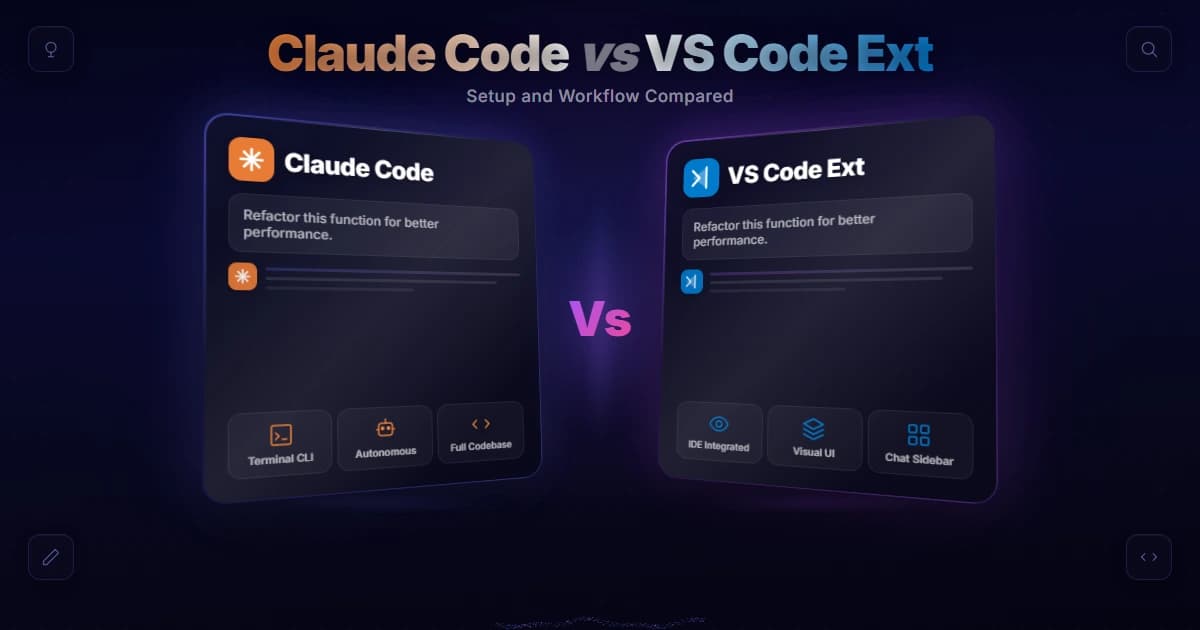
The terminal CLI is Claude Code — the extension doesn't replace it. It wraps the same engine, the same models, and the same configuration in a native panel, then adds the visual layer a terminal can't offer. Anthropic's official VS Code documentation now calls it the recommended way to run Claude Code in VS Code, and five features earn that label:
- A sidebar agent panel. Chat with the agent in a dockable panel — drag it to the secondary sidebar, the left sidebar, or open it as an editor tab. Multiple conversations run in parallel tabs, each with its own context and history.
- Inline diff review. When Claude wants to edit a file, the extension opens a side-by-side comparison before anything touches disk. Accept, reject, or edit the proposal directly in the diff view — the extension tells Claude when you've modified it, so it never assumes the file matches its original suggestion.
- Plans you can annotate. In Plan mode, the extension opens Claude's plan as a full markdown document. Add inline comments on the parts you'd do differently before the agent writes a single line.
- Editor context for free. Claude automatically sees your selected text — the prompt box footer counts the highlighted lines. Press
Alt+K(Option+Kon Mac) to drop an @-mention like@auth.ts#5-10straight into your prompt. - Searchable session history. Every conversation gets an AI-generated title and resumes with full history. A Remote tab even pulls in cloud sessions you started on claude.ai.
One detail trips up nearly everyone: the Claude Code VS Code extension bundles its own private copy of the CLI for the chat panel, but it does not put claude on your PATH. To run the CLI in the integrated terminal, install it separately.

How do you install the Claude Code extension in VS Code?
Check you are on VS Code 1.98.0 or higher, install the Anthropic-published listing from the Marketplace, open the panel from the Spark icon or Command Palette, then sign in through the browser with any paid plan or a Console account.
Setting up the extension took us under two minutes:
- Check your editor version. The extension needs VS Code 1.98.0 or higher (Help → About).
- Install from the marketplace. Open the Extensions view with
Ctrl+Shift+X(Cmd+Shift+Xon Mac), search "Claude Code", and install the Anthropic-published listing — the same one hosted on the Visual Studio Marketplace. Guides interchangeably call it the Claude Code VSCode extension; either way, don't confuse it with "Claude Dev," a community project now named Cline. - Open the panel. Click the Spark icon in the editor toolbar — it appears once a file is open — or hit the Command Palette (
Ctrl+Shift+P) and type "Claude Code". - Sign in. A browser window handles authorization. Any paid Claude subscription works: Pro at $20/month, Max at $100 or $200/month, Team, or Enterprise. A Claude Console account works too, and you don't need an API key. The Free plan does not include Claude Code, full stop. If you juggle multiple logins, it's worth learning how to check which account Claude Code uses in VS Code so you don't accidentally burn the wrong plan's usage.
If the Spark icon doesn't show after installing, run "Developer: Reload Window" from the Command Palette — in our experience that fixes it nine times out of ten.
The core workflow: delegate, review, steer
Three beats. Delegate in Plan mode and annotate the plan before approving. Review every diff in the native viewer, rejecting with a note when it is wrong. Steer by highlighting the lines you mean, and rewind with checkpoints when a session drifts.
Running the Claude Code VS Code extension settles into a three-beat loop once the panel is docked.
Delegate in Plan mode. Click the mode indicator at the bottom of the prompt box and switch to Plan. Describe the task — "add rate limiting to the contact form API" — and Claude researches the codebase, then hands back a plan as an editable document. Comment, adjust, approve.
Review every diff. With default permissions, Claude asks before each edit, and the change opens in VS Code's native diff viewer. This is the Claude Code VS Code extension's single biggest win over the terminal: you read green and red lines in the editor you already trust instead of a re-printed patch in the scrollback. We reject maybe one diff in ten, and every rejection carries a note telling Claude what to do instead.
Steer with context. Highlight the exact lines you're discussing before prompting — the selection travels with the message. Reference command output with @terminal:name rather than pasting logs. And when a session goes sideways, hover over an earlier message and use checkpoints to rewind the code, fork the conversation, or both at once.
Four shortcuts carry most of our VS Code Claude Code workflow:
| Shortcut (Windows/Linux) | Mac | What it does |
|---|---|---|
Ctrl+Esc | Cmd+Esc | Toggle focus between the editor and the Claude panel |
Ctrl+Shift+Esc | Cmd+Shift+Esc | Open a new conversation as an editor tab |
Alt+K | Option+K | Insert an @-mention for the current file and selection |
Shift+Enter | Shift+Enter | New line in the prompt box without sending |

Claude Code VS Code extension vs CLI vs desktop app
Same agent, three front ends. The CLI is the superset for scripting, SSH and the full command set. The desktop app runs several sessions at once. The extension is the middle path, and all three share history, CLAUDE.md, hooks and MCP servers.
Same agent, three front ends. Here's how we split our own time between them:
| VS Code extension | Terminal CLI | Desktop app | |
|---|---|---|---|
| Interface | Sidebar panel + native diff viewer | Text UI in any terminal | Standalone app, parallel sessions |
| Best for | Reviewing every change visually | Scripting, SSH, automation, the full command set | Running several local and cloud agents at once |
| Commands & skills | Subset (type / to see) | All of them | Subset |
| Unique extras | Plan annotation, selection context, checkpoint buttons | ! bash shortcut, tab completion, headless mode | Cloud session hand-off |
| Setup | Marketplace install | npm or native installer | Download from Anthropic |
The CLI remains the superset — every command, hook, and flag ships there first, and our Claude Code CLI documentation guide maps that surface. The Claude Code desktop app sits at the other end: less depth per session, more sessions at once. The Claude Code VS Code extension is the middle path, and nothing is siloed — run claude --resume in a terminal to continue any conversation the extension started, because both read the same history, the same CLAUDE.md, the same hooks, and the same MCP servers.
Yes, it works in Cursor and other VS Code forks
Anthropic ships a one-click path for Cursor, and the extension also loads in forks such as Devin Desktop and Kiro via Open VSX. If a fork refuses it outright, running the CLI in that editor's integrated terminal always works.
Anthropic ships a one-click install path for Cursor, and the Claude Code VS Code extension also loads in forks like Devin Desktop and Kiro — search the fork's Extensions view or pull it from the Open VSX registry. We keep it installed inside Cursor on one machine: Cursor's own agent and Claude Code coexist without conflict, and comparing them side by side is exactly how we wrote Cursor vs Claude Code. If a fork refuses the extension outright, the fallback never fails: open that editor's integrated terminal and run the CLI there — the same trick that lets you bring Claude into PyCharm and other JetBrains IDEs that have no native extension.
Settings worth changing on day one
Set initialPermissionMode to plan so every conversation starts with a reviewed plan, turn on the new-conversation shortcut, and leave autosave and gitignore respect alone. Keep shared configuration in ~/.claude/settings.json so CLI and extension stay identical.
The defaults are sensible, but a few edits made the Claude Code VS Code extension ours — all under Extensions → Claude Code in VS Code settings:
| Setting | Default | Our take |
|---|---|---|
initialPermissionMode | default | Set to plan so every new conversation starts with a reviewed plan before edits |
enableNewConversationShortcut | false | Turn on — Ctrl+N then starts a fresh conversation when the panel is focused |
useTerminal | false | Leave off; the graphical panel is the point. Flip it only if you want the CLI look inside a panel |
autosave | true | Leave on — files save before Claude reads them, so it never works from stale buffers |
respectGitIgnore | true | Leave on — keeps node_modules and build output out of file searches |
Two more habits worth stealing. First, keep shared configuration in ~/.claude/settings.json, not in VS Code settings — the extension and CLI both read it, so permissions and hooks stay identical across surfaces. Second, resist bypassPermissions outside a sandbox; the diff-review step is the reason to use the extension at all.
Claude pricing at a glance
Free costs nothing, Pro is $20 a month, Max starts at $100 a month, and API access is billed per token. The extension itself installs free but does nothing without a paid plan or a Console account with credits.
| Plan | Price |
|---|---|
| Free | $0 |
| Pro | $20 / month |
| Max | from $100 / month |
| API | Pay per token |
For the full breakdown of every plan, see our how much Claude costs guide.
Just want the connection steps? Connect Claude to VS Code walks the extension install and the sign-in handoff, including the three ways login stalls.
Live in Sublime instead? Claude in Sublime Text is honest about the options — there is no official plugin, so the terminal beside your editor is the real path.
Came here from a retired extension? Roo Code vs Claude Code covers the May 2026 shutdown and where former Roo users should migrate next.
Want the terminal and your editor working together? Claude Code IDE integration covers native diffs, shared selection, and the setup split between VS Code and JetBrains.
Frequently Asked Questions

Written by
Edith
Writing about Claude and the Anthropic toolkit — models, Claude Code, pricing, features, and fixes, in clear, practical, hands-on guides tested by daily use.
View all posts →