


You can use Alexa and Google Home together in the same house, because each answers to its own wake word and ignores the other. What they cannot do is talk to each other: neither assistant can control the other’s speakers, and routines built in one do not transfer.
Most households end up with both by accident rather than choice, usually through a gift or a device that came bundled. It works better than people expect, as long as you decide in advance which one runs the house.
Table of Contents
Do they interfere with each other?
Not in normal use. “Alexa” and “Hey Google” are different enough that each device ignores the other’s wake word, and both can sit in the same room.
- Each assistant responds only to its own wake word.
- They can be in the same room, though a metre or so apart avoids both picking up the same loud question.
- Neither can hear and act on the other’s reply.
- If one keeps waking by mistake, change its wake word rather than moving it.
- The practical rule: ask one assistant at a time.
What actually works across both
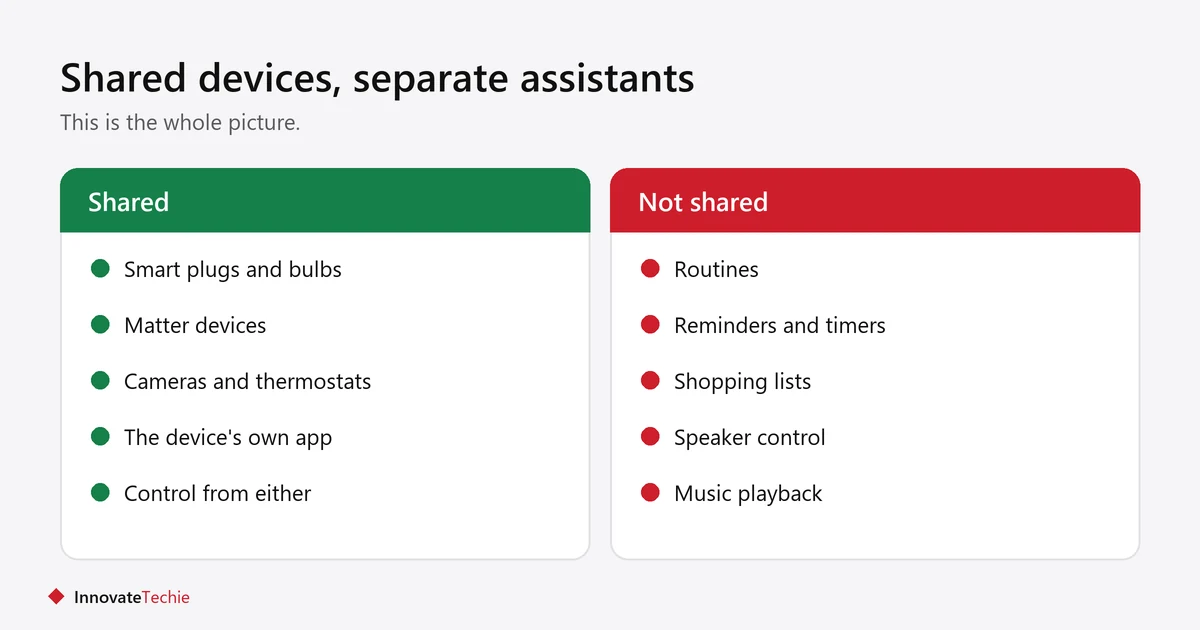
Shared control of your devices. Most smart plugs, bulbs and cameras can be linked to both assistants at once, so either can switch the same lamp.
- Matter devices are the cleanest case. They can be added to both ecosystems and controlled from either.
- Wi-Fi devices with a brand account usually work too. Link the brand’s skill in Alexa and its service in Google Home, and both see the device.
- The device’s own app keeps working regardless.
- Voice control in different rooms is the most common split, with one assistant per floor or per room.
What does not work
Cross-control and anything that lives inside one assistant. This is where people are disappointed.
| What people expect | Reality |
|---|---|
| Google controls an Echo speaker | No |
| Alexa plays music on a Nest speaker | No |
| Routines transfer between them | No, rebuild them |
| One shopping list, shared | No, separate lists |
| Alexa controls all Google devices | Limited, and varies by device type |
| Reminders shared between them | No |
So the devices are shared, but the assistants are not. Anything you build — routines, lists, reminders, timers — belongs to whichever assistant you built it in.
How to set it up without confusion
Pick one as the primary, keep names unique, and avoid building the same routine twice.
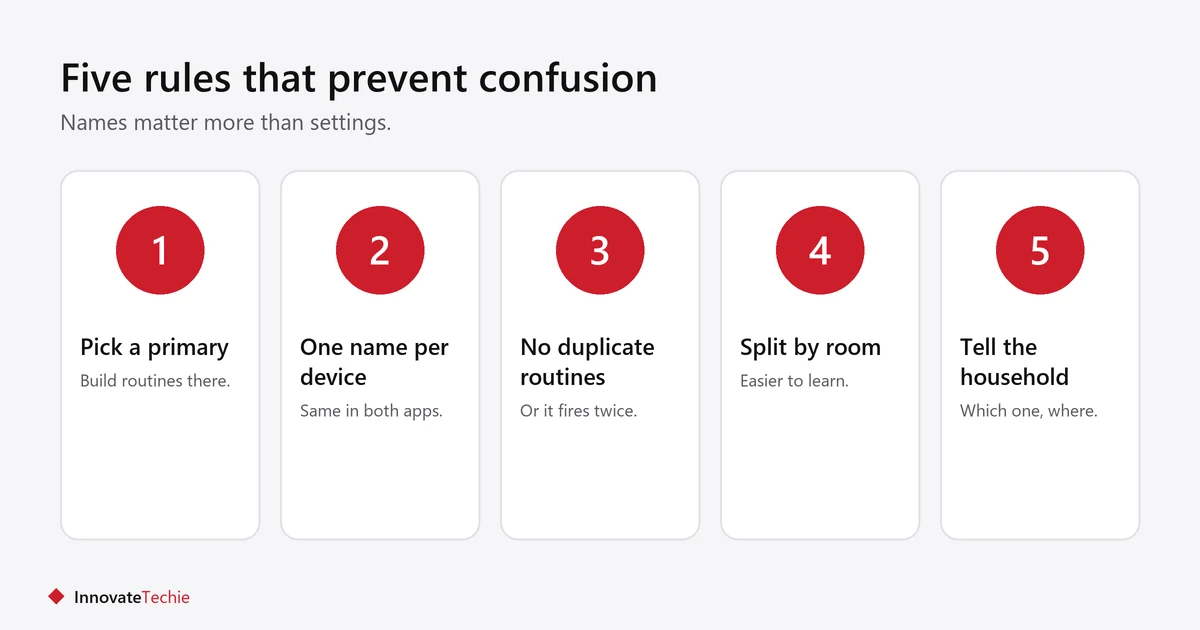
- Choose a primary assistant and build your routines there. The second one becomes a voice remote.
- Give every device one name, used in both apps. “Bedroom lamp” in Alexa and “Bed light” in Google guarantees confusion.
- Do not duplicate routines. Two assistants running a sunset routine means the lamp gets two commands.
- Split by room rather than by function, so people learn which one to talk to where.
- Tell everyone in the house which is which. This matters more than any setting.
Routines themselves are covered in Alexa routines for beginners and Google Home routines.
Should you run both?
Only if you already own both, or two people in the house genuinely prefer different ones. Buying into both deliberately costs more and gains little.
| Run both if | Stick to one if |
|---|---|
| You already own both | You are starting from nothing |
| Household members disagree | One person sets everything up |
| Different rooms, different devices | You want one set of routines |
| A gift or bundle brought one in | You are buying on a budget |
If you are starting out, one assistant is simpler and cheaper. See smart home on a budget.
Which assistant should be the primary?
Pick the one attached to the devices you already own and the phone you already use. Neither is clearly better at running a house; what matters is that one of them owns the routines.
- Already own Echo speakers: make Alexa primary. It has the widest device support and the largest range of cheap speakers.
- Use Android and Google services heavily: Google Home fits more naturally, especially for calendar and reminders.
- Have a Nest thermostat or doorbell: those work best in Google Home, so it is the easier primary.
- Have Fire TV or Ring: both belong to Amazon and integrate more deeply with Alexa.
- Whichever you choose, do not keep switching. Rebuilding routines twice a year wastes more time than either assistant saves.
Common problems and fixes
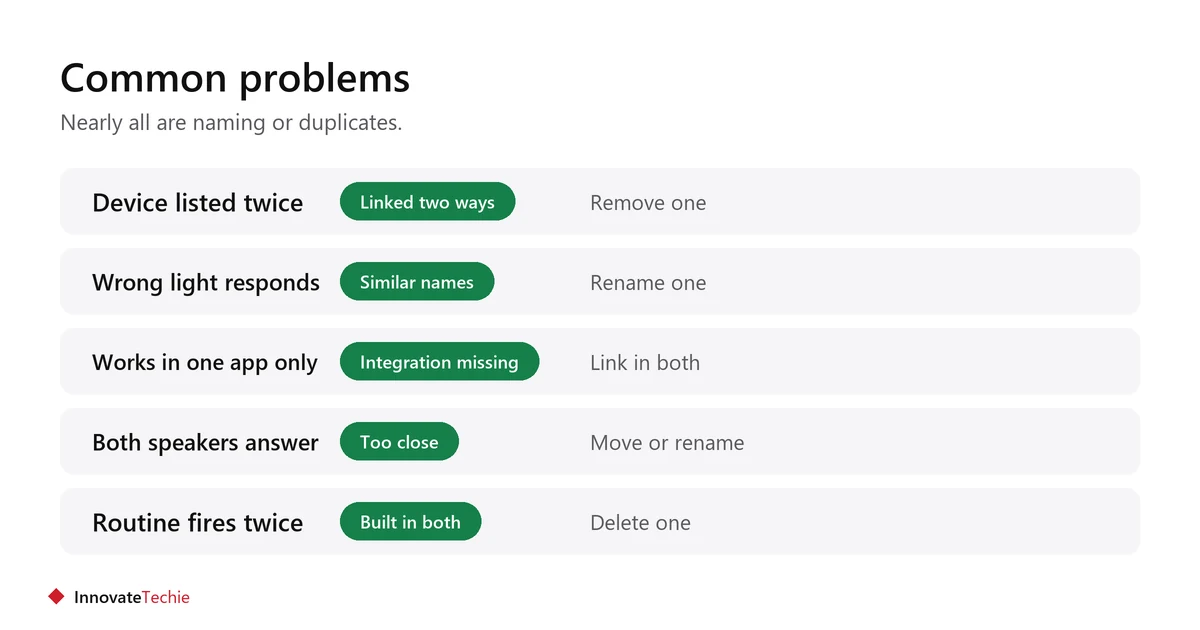
Nearly all of it comes down to names, duplicates, or the wrong assistant being asked.
- A device appears twice in one app: you linked it both directly and through a hub. Remove one.
- The wrong light responds: two devices share a similar name. Rename one.
- A device works in one app, not the other: the brand integration is linked in only one. Link it in both.
- Both speakers answer: they are too close, or a wake word was misheard. Move one, or change its wake word.
- A routine fires twice: you built the same routine in both. Delete one.
If a routine stops firing altogether, see Alexa routine not working.
Related guides
Frequently asked questions
Can you use Alexa and Google Home together?
Yes, in the same house. Each responds only to its own wake word, and most smart devices can be linked to both so either assistant can control them.
Can Alexa control Google Home devices?
Only in a limited way, and it varies by device type. Neither assistant can control the other’s speakers, so Alexa cannot play music on a Nest speaker.
Will two assistants in one room interfere?
Not usually, because the wake words are different. Keeping them about a metre apart stops both picking up the same loud question.
Do my routines transfer between Alexa and Google Home?
No. Routines, reminders, timers and shopping lists stay inside the assistant you created them in. Only the devices are shared.
Is it worth having both Alexa and Google Home?
It makes sense if you already own both, or household members prefer different ones. If you are starting from nothing, one assistant is simpler and cheaper.
Why do both of my speakers answer at once?
They are probably too close together, or one misheard its wake word. Move them further apart, or change one assistant’s wake word in its app.
About the author: Hamza Javaid is a web developer and the editor of InnovateTechie. Read our editorial policy.
Last updated: October 2026. Prices, plans and app menus change often, so confirm details on the manufacturer’s page before you buy.
