


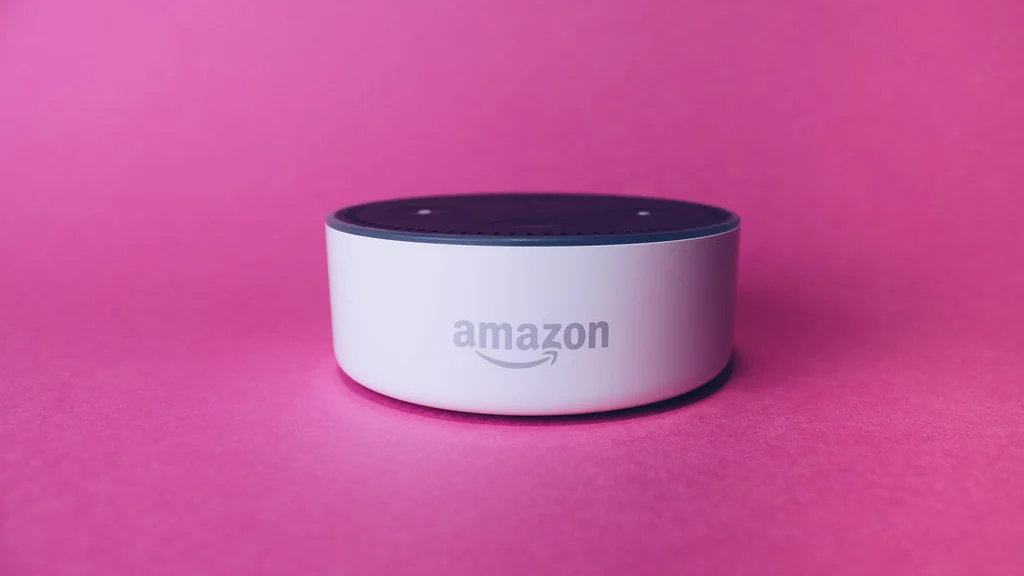
The easiest Alexa routines for beginners use one trigger and two or three actions: say “Alexa, good morning” and a lamp turns on, the weather is read out and a smart plug starts the coffee maker. You build them in the free Alexa app, and an Echo speaker is optional.
This guide explains triggers and actions, walks through creating your first routine, and lists ten ideas you can copy and adjust.
Table of Contents
What is an Alexa routine?
An Alexa routine is a saved rule with a trigger and one or more actions. When the trigger happens, Alexa carries out the actions in order.
| Part | What it is | Examples |
|---|---|---|
| Trigger (“When”) | What starts the routine | A phrase, a time, sunrise or sunset, a smart device, your location, an alarm |
| Actions | What Alexa does | Control lights and plugs, read the weather, play music, set volume, make an announcement |
| Device | Where audio plays | A chosen Echo speaker, or the one you spoke to |
Trigger types and menu names change as Amazon updates the app. Amazon keeps an official routines guide.
How do you create your first Alexa routine?
Create a routine in the Alexa app by choosing a trigger, adding actions and saving. Your first one takes about five minutes.
- Open the Alexa app and go to Routines.
- Tap the plus button to create a new routine.
- Enter a name, such as “Good Morning”.
- Choose the trigger under “When”, for example a voice phrase.
- Add actions one at a time, such as a light, then the weather.
- Choose which speaker should respond.
- Save the routine and test it by saying the phrase.
If you want a shortcut, the app also offers ready-made featured routines that you can switch on and edit.
What are the best Alexa routines for beginners?
These ten routines cover the moments most households repeat every day. Each uses a single trigger and a short list of actions.

| # | Routine | Trigger | Actions |
|---|---|---|---|
| 1 | Good morning | “Alexa, good morning” | Lamp on, weather, news briefing |
| 2 | Good night | “Alexa, good night” | All lights off, fan plug on, volume low |
| 3 | Leaving home | “Alexa, I’m leaving” | Lights and chosen plugs off |
| 4 | Sunset lights | Sunset | Living room lamp on |
| 5 | Weekday coffee | Scheduled time, weekdays | Coffee maker plug on |
| 6 | Movie time | “Alexa, movie time” | Lamp off, TV plug on |
| 7 | Dinner announcement | “Alexa, dinner is ready” | Announcement on every speaker |
| 8 | Medication or task reminder | Scheduled time | Spoken reminder on a chosen speaker |
| 9 | Bedtime wind-down | Scheduled time | Lights dim, quiet sounds for a set period |
| 10 | Welcome home | Arriving home, by location | Hallway light on |
A reminder routine is a prompt, not a medical tool. Do not rely on it for doses that matter.
What do you need before you start?
You need the Alexa app, an Amazon account and at least one thing for the routine to control or say. Smart devices are optional, because a routine can simply read the weather.
- The free Alexa app on a phone or tablet.
- An Echo speaker or display if you want hands-free voice control.
- Smart plugs or bulbs that list Alexa or Matter support.
- Clear device names, set in the app.
- Location permission, only if you want arriving and leaving triggers.
Smart plugs are the cheapest way to give a routine something to control. See our smart plug ideas.
Why is my Alexa routine not working?
Most failures come from a phrase Alexa confuses with a built-in command, a device that is offline, or a routine set to the wrong speaker. Check these in order.
- Run the routine manually from the app. If it works, the trigger is the problem.
- Change the phrase to something distinct that is not a normal Alexa command.
- Check that each device shows as online in the app.
- Confirm the routine is enabled and set for the right days.
- For location triggers, check that the app has location permission.
- Remove and re-add any action that fails.
How do you keep Alexa routines private and safe?
Review your voice history settings, limit what routines can unlock, and add a voice code for sensitive actions. Routines are convenient, so make sure they cannot be triggered by a visitor or a television.
- Choose how long voice recordings are kept, in the app’s privacy settings.
- Avoid routines that unlock doors by voice alone.
- Use distinctive phrases that will not be said by accident.
- Mute the microphone with the button when you want privacy.
New to smart homes in general? Read our guide to a smart home on a budget.
Which triggers should beginners use first?
Start with a voice phrase or a scheduled time, because both are easy to test and rarely fail. Add device and location triggers once those work.
| Trigger | Good first use | What to know |
|---|---|---|
| Voice phrase | Good morning, good night | Pick words Alexa will not confuse with a built-in command |
| Schedule | Coffee maker on weekdays | Set the days as well as the time |
| Sunrise or sunset | Lamp on at dusk | The time shifts through the year by itself |
| Smart device | Light on when a sensor detects motion | Needs a compatible sensor |
| Location | Hallway light when you arrive | Needs location permission on your phone |
Alexa routines for beginners work best when each one has a single clear trigger. Two routines with similar phrases are a common cause of confusion.
How do you edit, pause or delete an Alexa routine?
Open the routine in the Alexa app to change its trigger or actions, switch it off to pause it, or delete it. Pausing is safer than deleting when you only need a break, such as during a holiday.
- Open the routine from the Routines list in the app.
- Change the trigger, or add, remove and reorder actions.
- Use the enable switch to pause the routine without losing it.
- Delete a routine only when you are sure you will not need it again.
- Run the routine by hand after every change to check it.
Which Alexa routines can you add next?
Once the basics work, add routines for dismissing an alarm, for security alerts and for children’s bedtime. They use the same building blocks with one extra idea each.
- After the alarm: use “alarm dismissed” as the trigger, so lights and the weather start when you actually get up.
- Staged bedtime: add a Wait action between steps, so lights dim, then switch off twenty minutes later.
- Motion alert: a motion sensor triggers a phone notification during hours when nobody should be home.
- Work focus: one phrase sets a speaker to do not disturb and turns on a desk lamp.
- Kids’ bedtime: a scheduled routine dims the lights and plays a story or quiet music.
MakeUseOf lists more examples for each part of the day. Available triggers and actions depend on your devices and region.
Frequently asked questions
What are the easiest Alexa routines for beginners?
A “good morning” routine that turns on a lamp and reads the weather, and a “good night” routine that turns everything off. Both use one phrase and two or three actions.
Do I need an Echo to use Alexa routines?
No. You can create and run routines from the Alexa app on a phone. An Echo speaker adds hands-free voice control and lets Alexa speak the results aloud.
Are Alexa routines free?
Yes. Creating and running routines in the Alexa app costs nothing. You only pay for any smart devices you want the routines to control.
Can Alexa turn on my lights at sunset?
Yes. Choose a schedule trigger and select sunset, then add your light or smart plug as the action. The time adjusts through the year.
How many actions can one Alexa routine have?
A routine can hold many actions, but beginners should keep to two or three. Short routines are easier to test and fix when something stops working.
Can Alexa run a routine when I leave home?
Yes, with a location trigger. The Alexa app needs permission to use your phone’s location, and the routine runs when you leave or arrive at the address you set.
Why does Alexa ignore my routine phrase?
The phrase may be too close to a built-in command. Rename the trigger to something distinct, then test it again from the same speaker.
About the author: Hamza Javaid is a web developer and the editor of InnovateTechie. Read our editorial policy.
Last updated: October 2026. Prices, plans and app menus change often, so confirm details on the manufacturer’s page before you buy.
