


When smart bulbs turn on by themselves, the usual cause is power-on behaviour: most bulbs are built to switch on whenever they regain power, so any brief outage or flicker turns them all on. The second most common cause is a schedule or automation nobody remembers creating.
Those two explain the large majority of cases. The rest come down to network problems, firmware, or a wall switch being used as a switch. Here is how to tell which one you have.
Table of Contents
Why do smart bulbs turn on by themselves?
Because “on” is what most bulbs do when power returns. The bulb has no way to know whether the power cut was a blackout or someone flipping a switch, so it defaults to on.
- A one-second flicker on the grid is enough to trigger it.
- A breaker tripping and resetting does the same.
- So does anyone switching the wall switch off and on.
- Every bulb on that circuit comes on at once, which is the giveaway.
- This behaviour is deliberate, so that a bulb is never stuck unusable after an outage.
If all your bulbs come on together, at an odd hour, this is almost certainly it.
How to tell the causes apart
The pattern tells you the cause. Work through this before changing any settings.
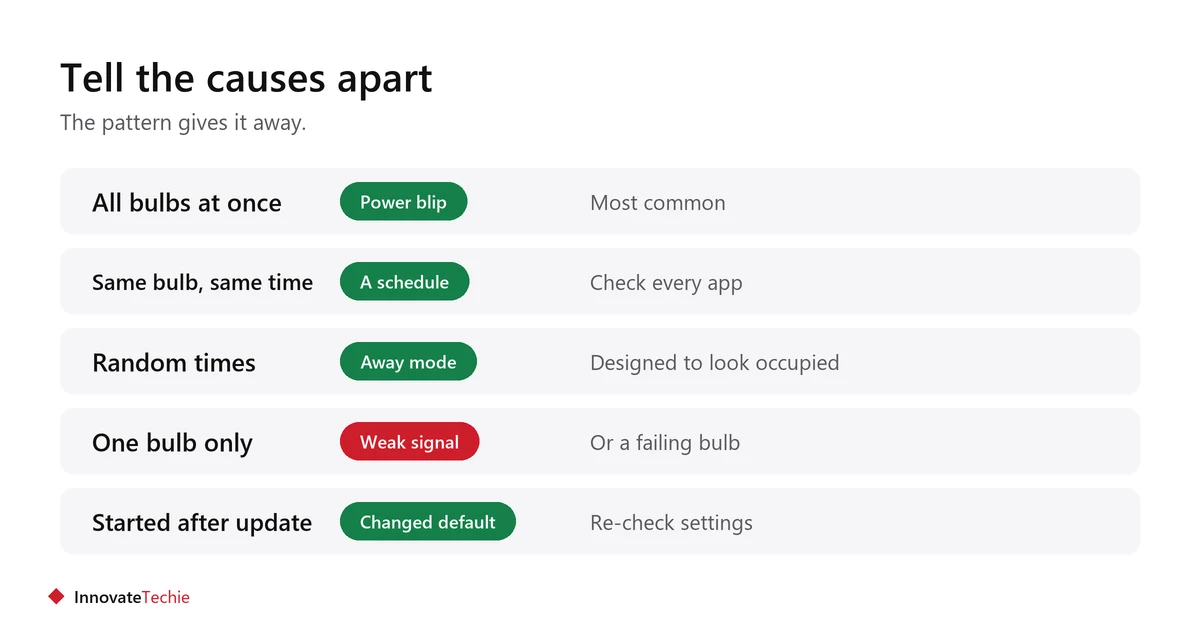
| What you see | Most likely cause |
|---|---|
| All bulbs on a circuit, at once | Power returning after a blip |
| The same bulb, at the same time daily | A schedule or routine |
| Random bulbs at random times | Away or vacation mode |
| Gradual brightening through the day | An adaptive or circadian lighting feature |
| One bulb only, repeatedly | Weak signal, or a failing bulb |
| Started after an app update | Firmware or a changed default |
Fix 1: change the power-on behaviour
Most bulbs let you choose what happens when power returns. Set it to off or last state instead of on.
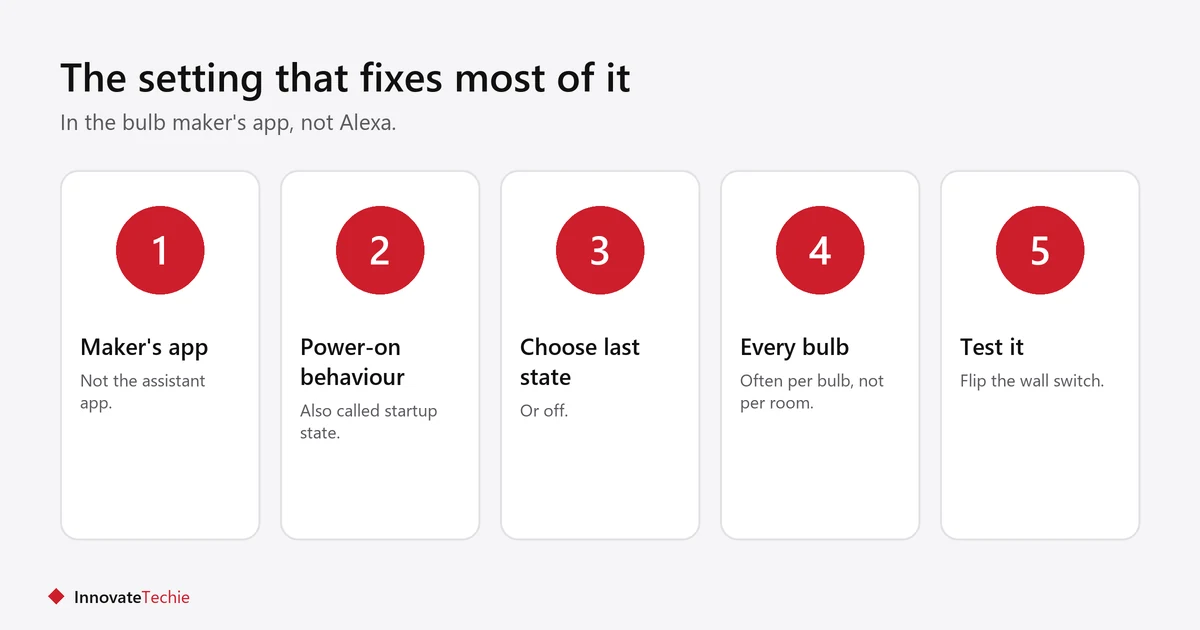
- Open the bulb maker’s own app, not Alexa or Google Home.
- Find the bulb’s settings, then a item named power-on behaviour, power-on state, or startup behaviour.
- Choose last state if you want it to resume what it was doing, or off if you want darkness after an outage.
- Repeat for every bulb. Many apps apply it per bulb, not per room.
- Test it by switching the wall switch off and on.
Not every budget bulb offers this setting. If yours does not, the only real fix is to stop the power interruptions, which usually means leaving the wall switch alone.
Fix 2: hunt down the forgotten automation
Check every app that can control the bulb, not just the one you use most. A routine created months ago in a second app is a common culprit.
- Check schedules in the bulb maker’s app.
- Check routines in Alexa, Google Home or Apple Home separately.
- Look for an away, vacation or holiday mode. These are designed to switch lights on and off at random to look occupied.
- Look for adaptive, circadian or natural lighting features, which change brightness through the day on their own.
- Check anyone else in the house with app access. Shared accounts create surprises.
- Check voice history. An assistant can mishear a television and act on it.
If a routine runs at the wrong time or not at all, Alexa routine not working covers that side.
Fix 3: rule out network and signal problems
A bulb that drops off the network and rejoins can come back in its default state. One bulb misbehaving while the rest are fine usually points here.
- Check where that bulb sits. Metal fittings, enclosed shades and distance all weaken signal.
- Most budget bulbs need 2.4 GHz. If your router merged the bands, that can cause intermittent dropouts.
- On Zigbee or Thread systems, removing a bulb that was acting as a repeater can destabilise its neighbours.
- Swap the suspect bulb with one from a reliable fitting. If the problem follows the bulb, the bulb is failing. If it stays with the fitting, it is signal.
Wider network fixes are in smart device not connecting to wifi.
Fix 4: firmware and updates
If the problem started on a specific day with no other change, a firmware or app update probably changed a default.
- Update the bulb firmware in the maker’s app, since an update sometimes fixes what an update broke.
- Re-check the power-on behaviour after any update. Defaults do get reset.
- Check the maker’s support forum for the same date. If many people report it, it is not your setup.
- Devices carrying the Matter logo tend to behave more consistently across apps, which makes problems easier to trace.
What not to do
Do not use the wall switch to keep smart bulbs off. It causes the exact problem you are trying to solve, and it takes the bulbs off the network entirely.
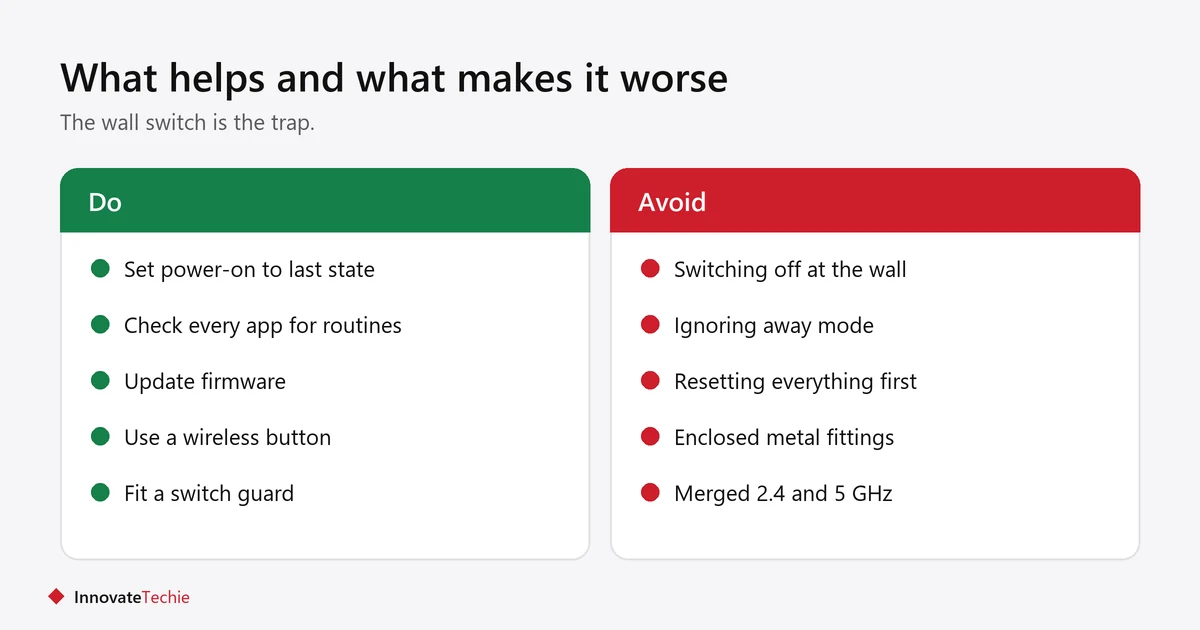
- Cutting power means the bulb cannot be controlled at all, by anyone.
- It guarantees the bulbs come back on next time the switch is used.
- Use the app, a voice command, or a stick-on wireless button instead.
- If a housemate keeps flipping the switch, a switch guard costs very little and solves it.
- Factory resetting every bulb should be the last step, not the first.
For the wider picture on living with smart lighting, see smart lighting for renters, and the U.S. Department of Energy on lighting efficiency covers why LED lighting is worth the switch at all.
Related guides
- Smart Bulbs in a Ceiling Fan: 6 Things to Check
- Smart Bulbs Without a Hub: 7 Checks Before You Buy
- What Not to Plug Into a Smart Plug: 8 Essential Rules
Frequently asked questions
Why do my smart bulbs turn on by themselves at night?
Most often a brief power interruption. Smart bulbs are built to switch on when power returns, so a grid flicker or a tripped breaker turns on every bulb on that circuit at once.
How do I stop smart bulbs turning on after a power cut?
Change the power-on behaviour in the bulb maker’s app from “on” to “last state” or “off”. You usually have to set it for each bulb individually, not per room.
Can a smart bulb turn on without a schedule?
Yes. Away or vacation modes switch lights at random on purpose, adaptive lighting changes them through the day, and a bulb rejoining the network can return to its default state.
Why does only one of my smart bulbs turn on by itself?
That usually points to signal rather than settings. Check whether that fitting is enclosed, metal, or far from the router, and try swapping the bulb with one that behaves.
Should I turn smart bulbs off at the wall switch?
No. Cutting power takes the bulb off the network so nothing can control it, and it guarantees the bulb comes back on when the switch is used again.
Can someone else turn on my smart bulbs?
Anyone with app access to your account or household can. Check who is shared on the account, and check the voice assistant’s history, since an assistant can mishear a television.
About the author: Hamza Javaid is a web developer and the editor of InnovateTechie. Read our editorial policy.
Last updated: October 2026. Prices, plans and app menus change often, so confirm details on the manufacturer’s page before you buy.
