In This Article
8 sectionsQuick answer
Is Claude for Windows the same as Claude Desktop? Yes — it's the Windows edition of the same app. Here's the full Claude app landscape, clearly explained.
Yes — Claude for Windows is the same as Claude Desktop. "Claude for Windows" is simply the Windows edition of Anthropic's official Claude Desktop app, the very same program that also runs on macOS. There is no separate Windows-only product: you download one app, and the Windows build is what installs on your PC.
App naming, download steps, and model lineup verified 31 July 2026 against Anthropic's Claude Help Center.
If you have searched for "Claude for Windows" and also stumbled on "Claude Desktop," you have found the same thing described two different ways. Anthropic ships a single desktop application. It runs on macOS and on Windows, and the Windows version is exactly what people mean when they say Claude for Windows. Same app, same features, same sign-in — just the build that matches your operating system.
This guide clears up the whole naming picture so you never second-guess it again: what the app actually is, how it differs from the browser and the mobile app, why it is not the same as Claude Code, what it adds on top of the web version, and exactly how to download and install it. The app currently gives you the latest Claude models — Opus 5, Sonnet 5, and Haiku 4.5, depending on your plan — and we review this guide regularly so the naming and the install steps stay accurate.
Key takeaway
Claude for Windows is not a separate product — it is the Windows build of Anthropic's single Claude Desktop app that also runs on macOS, delivering the same Opus 5, Sonnet 5, and Haiku 4.5 models, account, and subscription as the web and mobile apps.
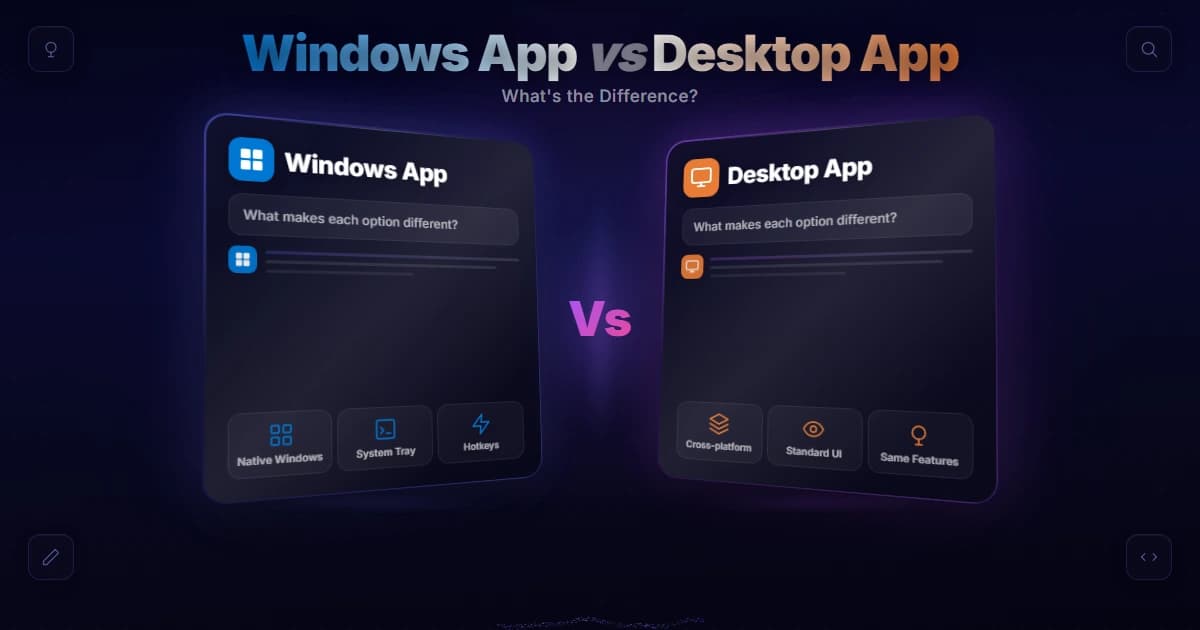
Is Claude for Windows the same as Claude Desktop?
Yes. Anthropic builds one desktop program and compiles a build for each operating system, exactly like Chrome. The download page and search results simply label the same installer differently, so both names point to a single native app.
The short answer is yes. Anthropic markets the program as "Claude Desktop," but the download page and search engines often surface it as "Claude for Windows" because that is what Windows users type into the search bar. Both names point to one native app.
Think of it the way you think about a web browser. Chrome for Windows and Chrome for Mac are both just Chrome — the company builds one product and compiles a version for each operating system. The Windows and Mac editions of the app work the same way: they are both just Claude Desktop, with the Windows build tailored to run natively on your PC and sit in your taskbar.
So when one page says "download Claude Desktop" and another says "get Claude for Windows," they are sending you to the identical installer. Nothing is missing from the Windows edition, and you do not need to hunt for a different app. If you want a broader primer on the assistant itself before diving in, our explainer on what Claude AI is covers the model and the ecosystem around it.

The full Claude app landscape, in one table
Five surfaces share one account: the native desktop app, claude.ai in a browser, the mobile app, Claude Code in a terminal, and Cowork inside the desktop app. The table's first row is the Windows build.
Part of the confusion is that "Claude" now spans several surfaces. You can reach the same account from a browser, a phone, a native desktop app, and even a terminal. They share your history and subscription, but they are different front doors. Here is how they line up so you can see exactly where Claude for Windows fits.
| Product | What it is | Where it runs | Best for |
|---|---|---|---|
| Claude Desktop app (a.k.a. Claude for Windows / Mac) | The native chat app you download and install | Windows and macOS | A dedicated window, taskbar access, connectors, and local integrations |
| Claude on the web | Claude running in a browser tab at claude.ai | Any OS with a modern browser | Quick access with nothing to install |
| Claude mobile app | The phone and tablet app | iOS and Android | Using Claude on the go |
| Claude Code | A separate terminal / CLI coding agent | Windows, macOS, and Linux | Developers who want Claude working in their codebase |
| Claude Cowork | An agentic mode inside the desktop app | Within Claude Desktop | Longer, multi-step tasks that run more autonomously |
The key takeaway: the first row is Claude for Windows. It is the same account you already use on the web or your phone — the Claude mobile app is just another window into it — but delivered as a proper desktop program rather than a browser tab.
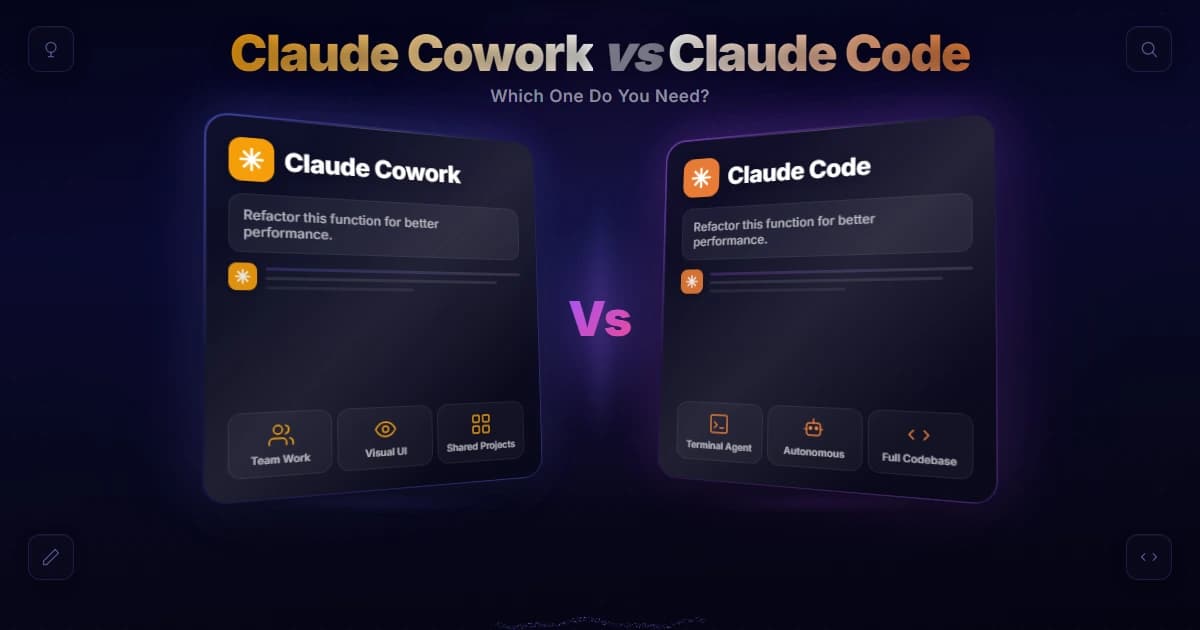
Claude for Windows vs Claude Code — these are not the same
They are separate tools. The desktop app is a graphical chat window built for everyone; Claude Code is a terminal agent that reads, edits, and runs code inside a project. Both run on Windows, which is why the names get tangled.
This is the trap most people fall into, so it is worth being blunt: Claude for Windows is not Claude Code. They are two separate tools with different jobs.
The desktop app is a chat app with a graphical interface. You type, Claude responds, and you can attach files, use connectors, and run agentic tasks through a normal window. It is built for everyone — writers, researchers, students, analysts, and anyone who wants Claude off the browser and onto their desktop.
Claude Code, by contrast, is a command-line tool that lives in your terminal and works directly inside a software project. It reads and edits files, runs commands, and helps you ship code. It also runs on Windows, which is exactly why the names get tangled — but installing it is a different process aimed at developers. If that is what you are after, our guide to running Claude Code on Windows walks through the setup step by step.
So if you want to chat with Claude in a native window, you want the Windows app (Claude Desktop). If you want an AI coding agent in your terminal, you want Claude Code. One is not an upgrade of the other; they solve different problems.
We can speak to this split from daily habit: our own work runs on a native Windows and PowerShell setup, with Claude Code living in the terminal doing the actual building and the desktop app open in a separate window for reading and planning. The distinction that trips people up on Windows is that both genuinely run here, side by side, so the question is never "which one works on my PC" — it is which job you are doing right now. We reach for the terminal tool when we want files changed and the chat window when we just want to think something through.
What the desktop app adds over the browser
Four things a browser tab cannot give you: a dedicated window with taskbar presence, local connectors and MCP integrations managed in-app, the agentic Cowork mode, and instant launch. The model and your subscription stay identical either way.
If claude.ai already works in your browser, why install anything? For plenty of people the desktop app is genuinely nicer to live in day to day. Here is what it gives you that a browser tab does not.
A dedicated window and taskbar presence. The app runs as its own program. It sits in your taskbar, opens with a keyboard shortcut, and does not disappear into a sea of thirty browser tabs. That alone is the reason many people switch.
Local integrations and connectors. The desktop app can connect to tools and services on your machine and beyond through connectors and the Model Context Protocol (MCP), the open standard documented at modelcontextprotocol.io. On desktop, these local integrations are installed and managed within the app, which makes it much easier to give Claude controlled access to files, apps, and data than a browser tab typically allows.
Cowork, the agentic mode. The desktop experience is where Claude Cowork lives — a mode designed for longer, multi-step work that Claude carries out more autonomously. If you are on Windows and want to use it, our Claude Cowork for Windows walkthrough covers what to expect, and if the tab does not appear for you, the fix for a missing Cowork tab in Claude Desktop explains why that happens.
Faster, always-there access. Because it launches on its own, the app feels less like visiting a website and more like opening any other program on your PC. Small thing, but it changes how often you actually reach for it.
None of this changes the underlying model or your subscription — you get the same Claude either way. The desktop app simply wraps it in a more convenient, more capable shell.

How to download and install the app
Open claude.com/download, pick the Windows option, run the installer like any other program, then sign in with your existing account. History, projects, and subscription follow you automatically. Never use third-party mirrors — only the official page.
Downloading and installing the app takes a couple of minutes. The most important rule: only get it from the official source. Do not grab a "Claude Desktop" installer from a random download mirror.
- Go to the official download page. Open claude.com/download in your browser and choose the Windows option. This is the same page that serves the macOS build, so make sure you pick Windows.
- Run the installer. Once the file finishes downloading, open it and follow the standard Windows installation prompts. The app installs like any other desktop program.
- Sign in. Launch Claude and log in with your existing account — the same credentials you use on the web and mobile. Your chat history, projects, and subscription come with you.
- Start using it. The app opens in its own window. From here you can chat, attach files, set up connectors, and — depending on your plan — use agentic features like Cowork.
That is the entire process. There is no separate "Windows license," no different app store to visit, and no special edition to track down. The Windows app is free to download and use for standard chat, and paid plans unlock the more advanced agentic capabilities. If you run into install questions or need to check compatibility, Anthropic's Claude Help Center has official setup and troubleshooting articles.
System requirements, generally
Requirements stay modest and can change, so treat the download page and Help Center as authoritative. Any supported Windows 10 or 11 build on a machine that runs a modern browser comfortably will run the app, and no GPU is needed.
Anthropic keeps the Windows requirements modest, and the exact supported versions can change over time, so treat the download page and Help Center as the source of truth rather than any fixed number you read elsewhere. In practice, if you are running a current, supported release of Windows — Windows 11, or a still-supported build of Windows 10 — on a reasonably modern PC, the app will install and run without trouble. Because the heavy AI work happens on Anthropic's servers, the program itself is lightweight — you do not need a powerful GPU or a huge amount of RAM to use it. A steady internet connection matters far more than raw hardware, since the app talks to Claude in the cloud.
If your machine can comfortably run a modern browser and the apps you use every day, it can run the Windows app.
Which one should you actually use?
Install the desktop app if you use Claude daily on a PC — it wins on dedicated window, connectors, and Cowork. Use the web for occasional questions or borrowed machines, mobile away from your desk, and Claude Code for actual coding.
For most people the answer is: use whichever front door is closest, and install the desktop app if you use Claude regularly on a PC. The web version is perfect for occasional questions or when you are on a borrowed computer. The mobile app covers you away from your desk. But if Claude is part of your daily workflow, the desktop app's dedicated window, connectors, and Cowork support make it the most capable everyday option on Windows.
And if you are a developer, remember that the chat app and Claude Code are complementary, not competing — many people keep the desktop app open for research while Claude Code handles the actual coding in the terminal.
Frequently Asked Questions
The bottom line
One official app, two operating systems, no stripped-down edition and no separate license. Download it from Anthropic's site, sign in with the account you already have, and you get chat, connectors, local integrations, and Cowork in a dedicated window.
Claude for Windows and Claude Desktop are the same thing: one official app, with the Windows build being the version that installs on your PC. It is not Claude Code — that is the separate terminal tool for developers — and it is not a stripped-down edition. Download it from the official site, sign in with your existing account, and you get Claude in a dedicated window with connectors, local integrations, and Cowork, all backed by the same subscription you already have.

Written by
Edith
Writing about Claude and the Anthropic toolkit — models, Claude Code, pricing, features, and fixes, in clear, practical, hands-on guides tested by daily use.
View all posts →