


Do smart plugs work without wifi? Partly. The manual button on the plug always works, on-device schedules usually keep running, and anything remote — the app, voice control, alerts — stops entirely.
There are two separate situations here, and they have different answers: a temporary outage on a plug that is already set up, and a home that has no Wi-Fi at all. This covers both.
Table of Contents
What still works without Wi-Fi
More than people expect. The plug is still a plug, and most keep running whatever was stored on them.
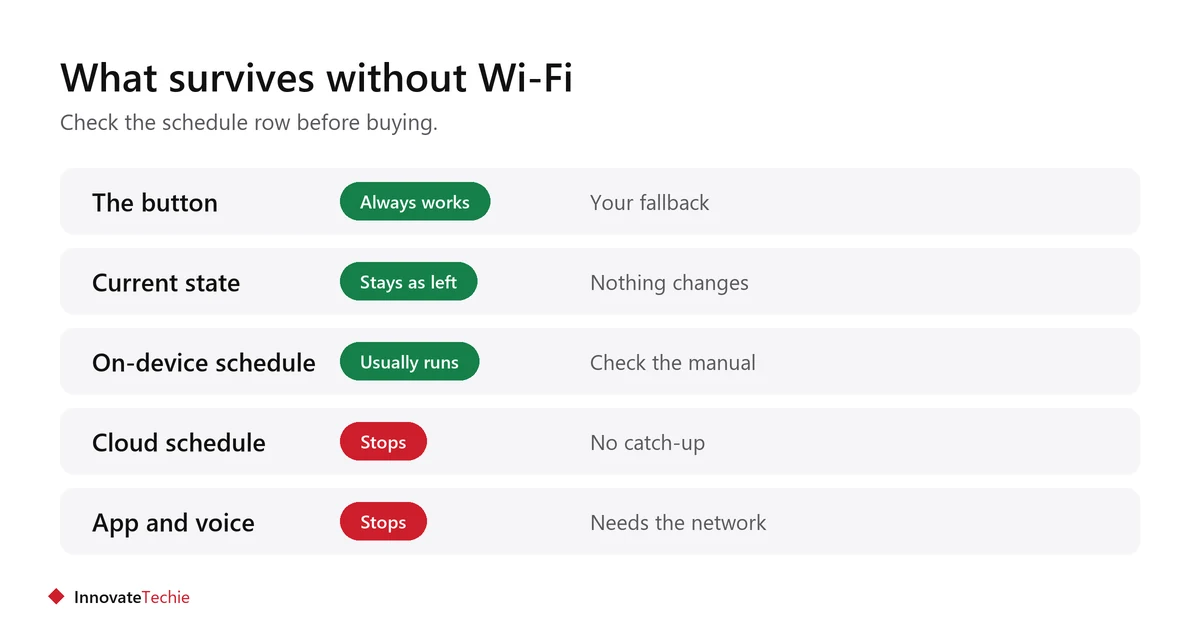
| Feature | Without Wi-Fi |
|---|---|
| The physical button on the plug | Always works |
| Whatever state it was left in | Stays as it was |
| On-device schedules and timers | Usually keep running |
| Cloud-run schedules | Stop |
| App control from home | Usually stops |
| App control from away | Stops |
| Voice assistant control | Stops |
| Energy monitoring history | Pauses, resumes later |
The one to check before buying is the schedule row. Whether a timer survives depends on whether the plug stores it or the maker’s servers do.
Wi-Fi down versus no internet
These are different failures and they behave differently. It is worth knowing which one you have.
- Your router is off: the plug has no network at all. Only the button works.
- Router on, internet down: the plug is still on your network. Some plugs can still be controlled from the app on the same network; many cannot, because the app talks to the maker’s servers even for a device in the next room.
- Plugs with local control keep working from the app when the internet is out. This is a selling point worth looking for.
- Hub-based plugs using Zigbee, Z-Wave or Thread usually keep working locally, because the hub does the thinking.
Can you set up a smart plug without Wi-Fi?
Usually not. Almost every Wi-Fi plug needs a network during setup, because that is how it is told which network to join and gets registered to your account.
- Wi-Fi plugs need a working 2.4 GHz network for the first setup.
- Bluetooth-only plugs are the exception. They pair straight to a phone and need no network at all.
- Zigbee and Z-Wave plugs need a hub, and the hub usually needs internet for its own setup.
- A phone hotspot can get a plug through setup, but the plug will then look for that hotspot every time, which is rarely useful.
Setup problems more generally are covered in smart plug not connecting.
What to use if you have no Wi-Fi at all
There are real options, and for some homes they are better than a smart plug anyway.
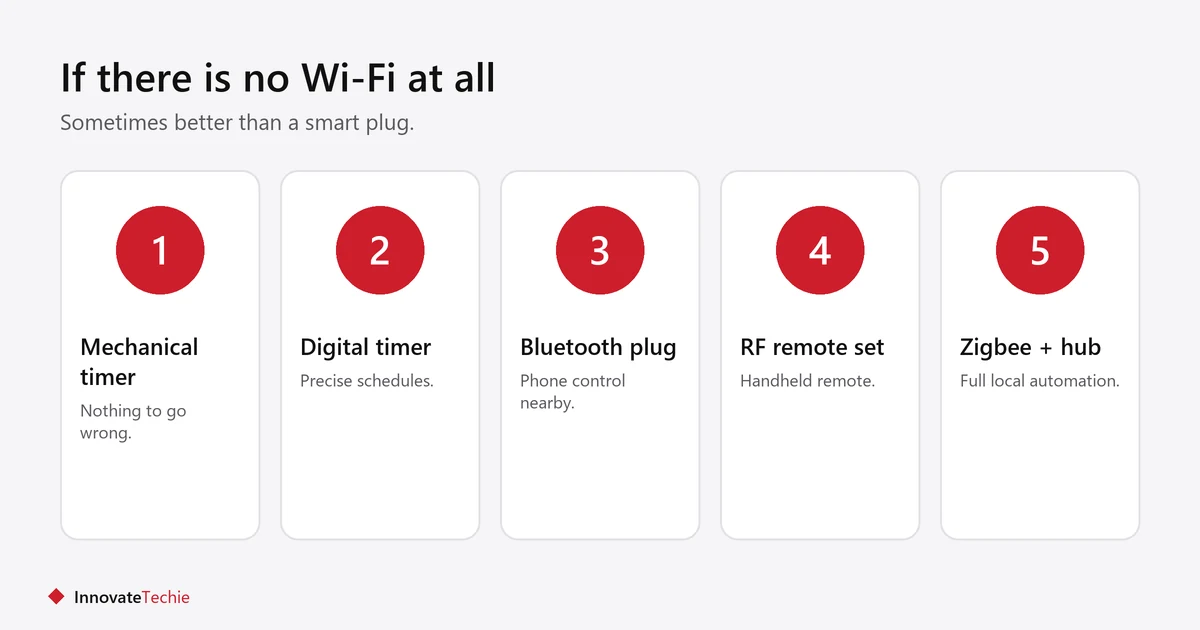
| Option | What it does | Needs |
|---|---|---|
| Mechanical timer plug | On and off at set times | Nothing |
| Digital timer plug | More precise schedules | Nothing |
| Bluetooth smart plug | Phone control when nearby | A phone |
| RF remote socket set | Handheld remote control | Nothing |
| Zigbee plug plus hub | Full local automation | A hub |
For an older relative’s house with no broadband, a digital timer plug does most of what people actually want from a smart plug, with nothing to go wrong.
What happens when Wi-Fi comes back
The plug reconnects on its own, usually within a minute or two, and carries on. Nothing needs resetting.
- It reconnects automatically. Resist the urge to factory reset it.
- Missed schedules are not run retrospectively.
- Energy monitoring resumes, with a gap in the history.
- If it does not reconnect within a few minutes, power cycle the plug before anything else.
- If it never reconnects after an outage, the router may have changed channel or band.
What about a power cut rather than a Wi-Fi cut?
Different problem, bigger effect. With no power the plug does nothing at all, and what happens when power returns depends on the plug’s power-on behaviour setting.
- Most plugs return to whatever state they were in, but some default to on.
- Check for a power-on behaviour or default state setting in the maker’s app.
- Set it deliberately rather than leaving the default, especially for anything that heats.
- After a long outage the router usually takes longer to come back than the plug, so give it a few minutes before assuming a fault.
Buying for an unreliable connection
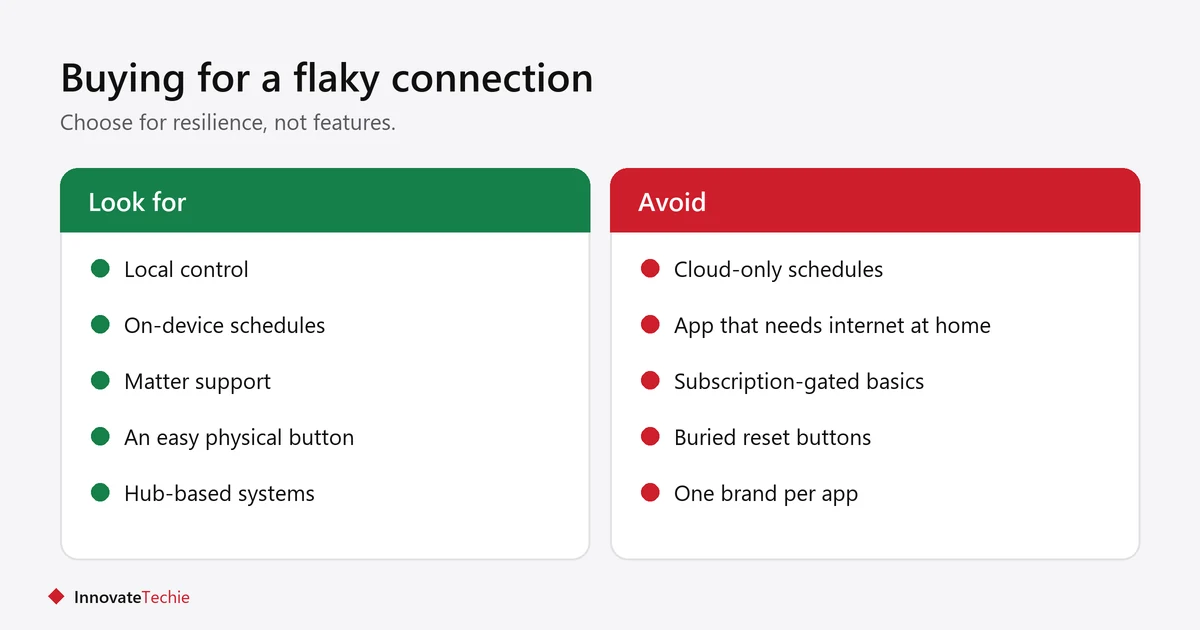
If your internet drops often, choose for local control rather than features.
- Look for “local control” or “works offline” in the specification.
- Prefer on-device schedules over cloud schedules.
- Matter devices generally favour local control, which helps here.
- A hub-based system costs more up front and is far more resilient.
- Check that the physical button is easy to reach, because it is your fallback.
What a smart plug is worth running at all is in do smart plugs save energy.
Related guides
- Will a Smart Plug Work if the Wall Switch Is Off?
- Smart Bulbs Flicker With a Dimmer Switch: The Fix
- Smart Bulbs Turn On By Themselves? 7 Real Causes
Frequently asked questions
Do smart plugs work without wifi?
Partly. The button on the plug always works and on-device schedules usually keep running, but app control, voice control and alerts all stop without a connection.
Will my smart plug schedule run if the wifi is down?
It depends where the schedule is stored. On-device schedules keep running; cloud-run schedules stop and do not catch up afterwards.
Can I set up a smart plug without wifi?
Not usually. Wi-Fi plugs need a network during setup. Bluetooth-only plugs are the exception, since they pair directly to a phone.
What can I use instead of a smart plug with no internet?
A digital or mechanical timer plug covers scheduling with nothing to go wrong. A Bluetooth plug adds phone control when you are nearby.
Does a smart plug need wifi to turn on and off?
Not for the physical button, which always works. It does need the network for the app, a voice assistant, or any remote control.
Will my smart plug reconnect after the wifi comes back?
Yes, usually within a minute or two, on its own. Do not factory reset it. If it has not returned after a few minutes, power cycle the plug.
About the author: Hamza Javaid is a web developer and the editor of InnovateTechie. Read our editorial policy.
Last updated: October 2026. Prices, plans and app menus change often, so confirm details on the manufacturer’s page before you buy.
